Let's Shape The Future Of Your Investments!
Natoque iaculis cursus augue urna commodo aptent morbi tortor porttitor quis ornare.

Some baby moments arrive like soft light through a curtain, quiet, honest, fleeting. When I use an AI baby video maker free of cost, I’m not trying to make something flashy. I’m trying to hold that light a little longer. The right tool helps me turn small looks, sleepy breaths, and playful hands into a soothing rhythm of images and music that actually feels like your child. In this guide, I’ll show you how I build these memory films with care, how I choose platforms, shape the mood, protect privacy, and keep the visuals emotionally true.
I love when a still photograph begins to move emotionally, subtle pans, a slow zoom toward a tiny hand, captions that read like whispers. A good AI baby video maker free tool doesn’t just animate: it listens to the mood of your pictures. The light feels gentle but slightly unsure at first, then settles as transitions find a natural rhythm. When it works, the slideshow breathes like a lullaby. You feel the days passing softly, without the rush.
New parents are always low on time. I look for clean templates, simple caption prompts, and automatic beat-matching so the edit doesn’t become another chore. With smart defaults, I can build a 30–60 second story quickly: a calm intro, a warm middle, a quiet closing shot that lingers for one extra beat. The tool handles pacing while I keep an eye on color temperature and flow.
Professional editing can be expensive and intimidating. Free AI tools offer an approachable path, especially for short social clips and milestone reels. They won’t replace an auteur, but they can carry the emotional weight if you choose softly lit images, keep effects restrained, and let real textures, skin, blankets, tiny curls, lead the frame.
I start by gathering 20–40 images with consistent light and clear eyes. Soft window light is ideal. I avoid harsh on-camera flash when possible: it flattens skin and creates anxious shadows. I group photos by small themes, morning smiles, first bath, tiny shoes, so the sequence has a quiet arc.
Tips I rely on:
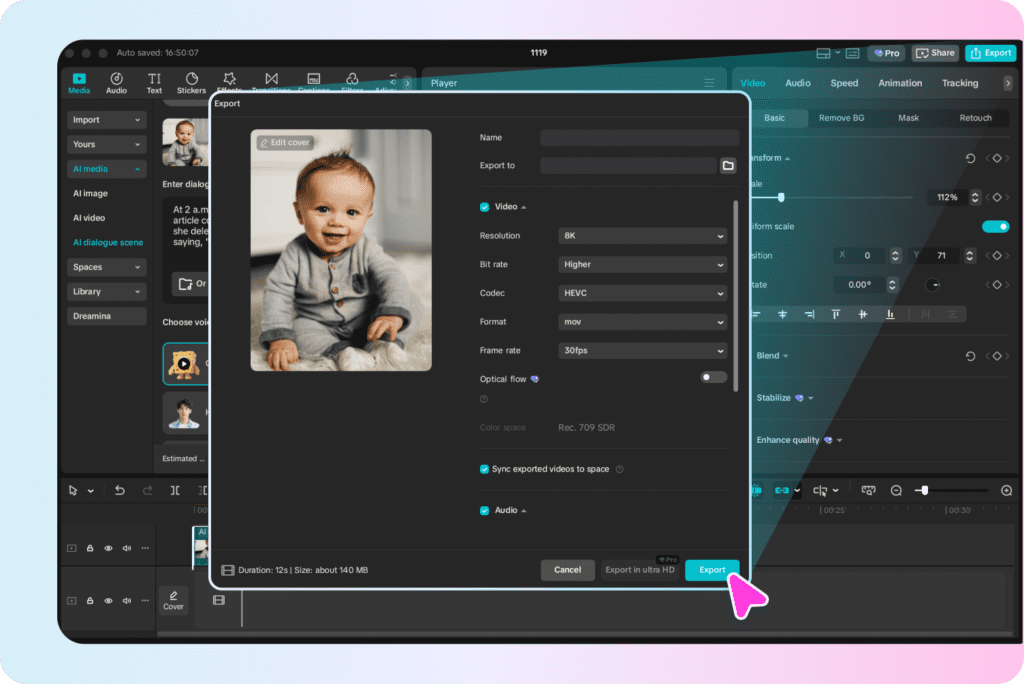
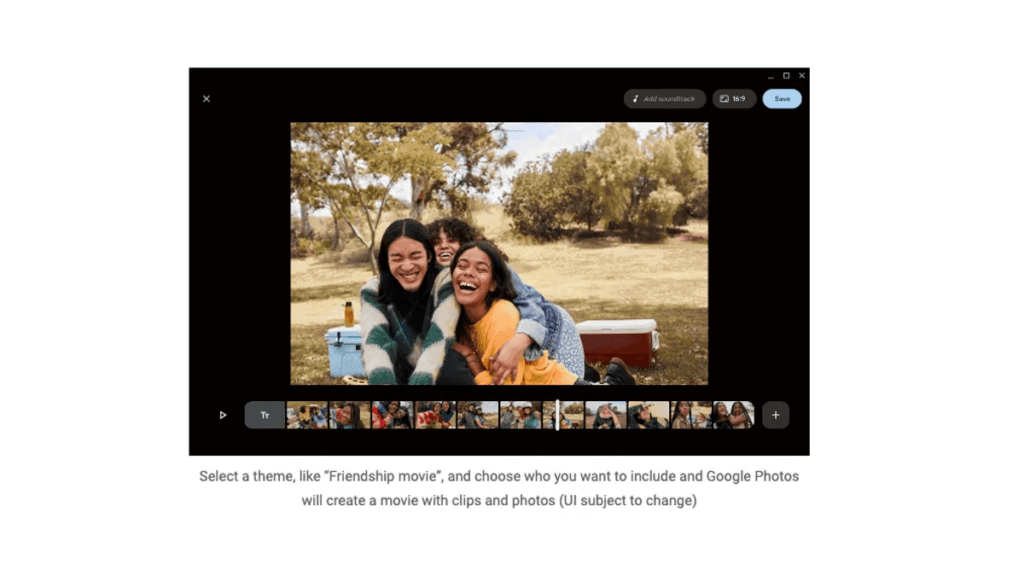
When I test an ai baby video maker free option, I ask: Does it feel gentle? Can it keep identity consistent across frames? Most beginners do well with friendly platforms like Canva (free plan with clean templates if you choose free assets), CapCut (quick auto-edits, text-to-speech), Google Photos (simple, memory-style movies), Microsoft Clipchamp (1080p, easy voiceover), or Adobe Express (solid typography, careful color controls if you stay with free elements). Try two: notice which one respects your images more.
I prefer a warm palette: soft highlights, gentle contrast, no heavy filters. Choose a template with breathing room, wide margins, unhurried transitions. If there’s an AI style toggle, I keep it subtle. Heavy stylization makes baby skin look overly protected and plastic.
Sequence tips:
I keep captions spare and specific: “Three a.m. laughter,” “First sunlight,” “You blinked once and everything changed.” If the tool offers AI caption suggestions, I use them as a starting point, then soften the language so it reads like a note to your child, not an announcement. Short lines, a few moments of silence, and one closing message are enough.

Music should cradle the pacing. Lullaby acoustic, soft piano, or airy ambient tracks work well. If the platform auto-matches transitions to beats, choose a slow tempo so the cuts don’t rush the emotion. For voiceover, a warm, low-intensity read recorded on your phone may feel more sincere than an AI voice. If you do use AI voice, select a tone with gentle breath and avoid overly bright pronunciations.
Free tools can be generous, but I check two things first: 1080p export and the ability to avoid watermarks by sticking to free assets. Many platforms only watermark paid elements, so choose clean, free templates and you’ll keep the frame pure. Also look for auto-beat sync, caption prompts, and gentle transitions.
Free plans can feel slightly constrained, limited stock music, fewer fonts, occasional branding on certain templates. It’s workable. Choose one gentle template and personal photos will carry the emotion. If a background is breathing in a way that doesn’t feel natural because of a busy animation, switch to a quieter theme.
Keep motions slow and respectful: a soft zoom, a tender caption, a fade up from black. The light should feel like early morning.
Line up monthly portraits in the same spot if you can, a window, a favorite chair. Let the background remain your emotional space of continuity.
Short and silly can still feel sweet. Try a gentle AI voice reading a tiny joke from the baby to grandparents. Keep colors warm so the playfulness doesn’t turn harsh.
If your tool offers background generation, go minimal, soft stars, pale clouds, quiet fields. Avoid loud textures: the baby is the story. If the model becomes shy in darker scenes, lift the exposure slightly to keep eyes open and kind.
Natural window light with the baby angled slightly toward the source gives skin a living texture. Avoid mixed color temperatures (tungsten lamps plus daylight) when possible. Compose with rule of thirds around the subject so the AI has room to breathe, clean edges reduce jitter and odd crops.
Let the first cut land on the second or third soft beat, not the very first. It feels more patient. If your track swells, move the biggest smile to that moment. The motion becomes the inner rhythm of the memory.
A little is enough. Gentle film grain can add authenticity: heavy filters harden skin and make eyes look glassy. If you notice the eyes hesitate for a moment or hair jitter at the edges, slow the transitions and reduce motion intensity.
Before I upload, I skim for two lines: who owns the final video, and how uploaded content is used. I prefer platforms that let you retain ownership and don’t use baby images for training without clear consent.
Add a small, tasteful text mark in a corner, soft opacity, gentle font. It signals authorship without stealing focus. If you’re posting widely, consider a subtle overlay that’s hard to remove but visually polite.
An ai baby video maker free of cost can still feel beautifully human. When I slow down, choose tender light, and keep the design quiet, the edit holds a child’s presence with sincerity. Let your film be small and honest. The best compliment is simple: it feels like them. That’s the kind of memory that lasts, softly, steadily, like a little heartbeat you can return to anytime.