Let's Shape The Future Of Your Investments!
Natoque iaculis cursus augue urna commodo aptent morbi tortor porttitor quis ornare.
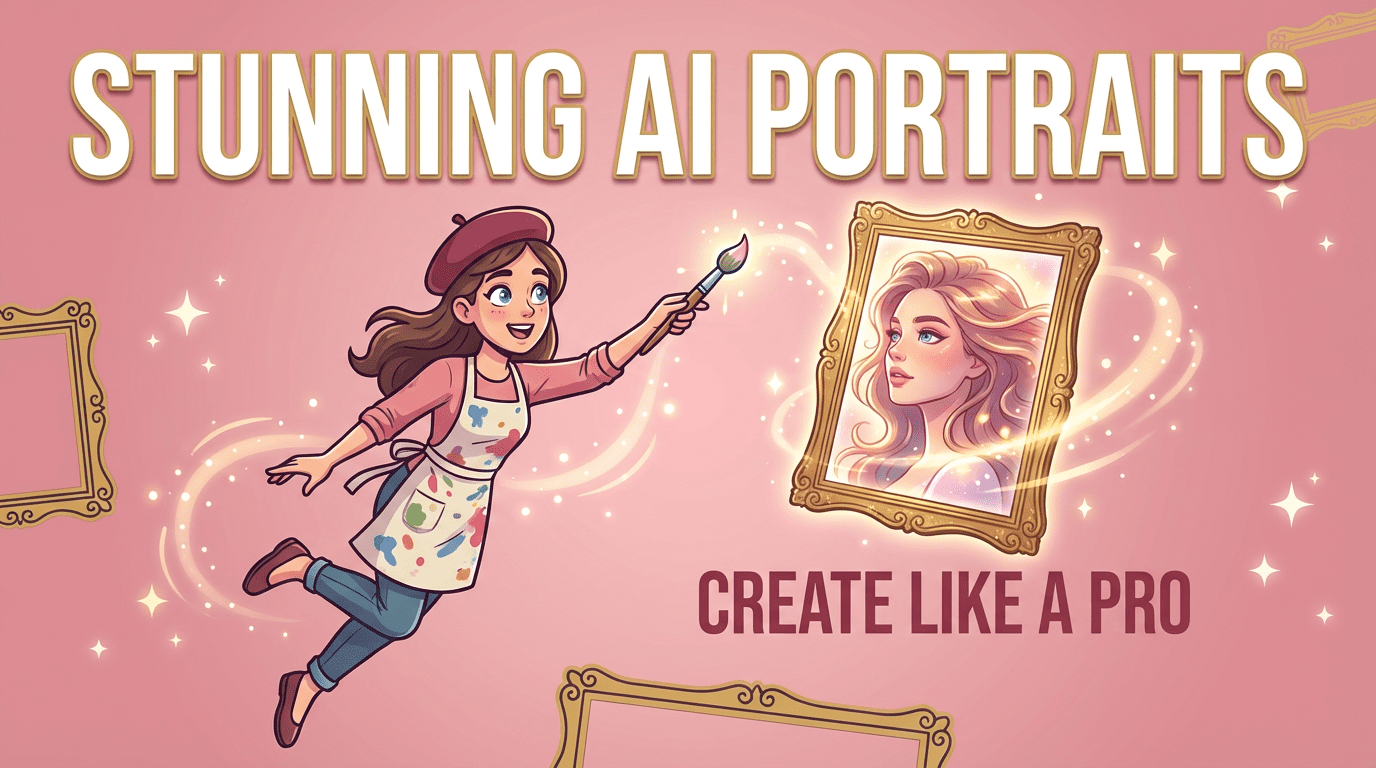

A face turns slightly toward a window and the light finds the cheekbone first, soft, pared down, honest. That’s the moment I look for when I explore AI portrait creation. Not the trick or the novelty, but the quiet feeling of a person, real or imagined, sitting in a believable slice of light.
In this guide, I’m sharing how I work with AI portrait tools today, what I observed from real examples (public demos, official galleries, and my own tests where possible), and gentle, practical steps for creators. AI portrait creation can be cinematic, stylized, or purposefully plain. The key is to guide the model with references, taste, and a steady, patient eye. Let’s begin with what these tools are and why they matter for visual storytellers.
I think of AI portrait tools as visually trained assistants with particular tastes. They generate or transform faces from text prompts, photo references, or both. In most cases, they’re using large image models trained on countless portraits and styles. I don’t peek under the hood: I watch the behavior. I notice how light wraps around noses, how skin texture holds up when you zoom, and whether eyes feel present or a little glassy.
In recently available examples from tools like Midjourney, Stable Diffusion XL (including ComfyUI/Automatic1111 workflows), Adobe Firefly, and DALL·E 3, I consistently see strong framing instincts and attractive color grades. The best results emerge when I provide a clear style direction and a good reference.
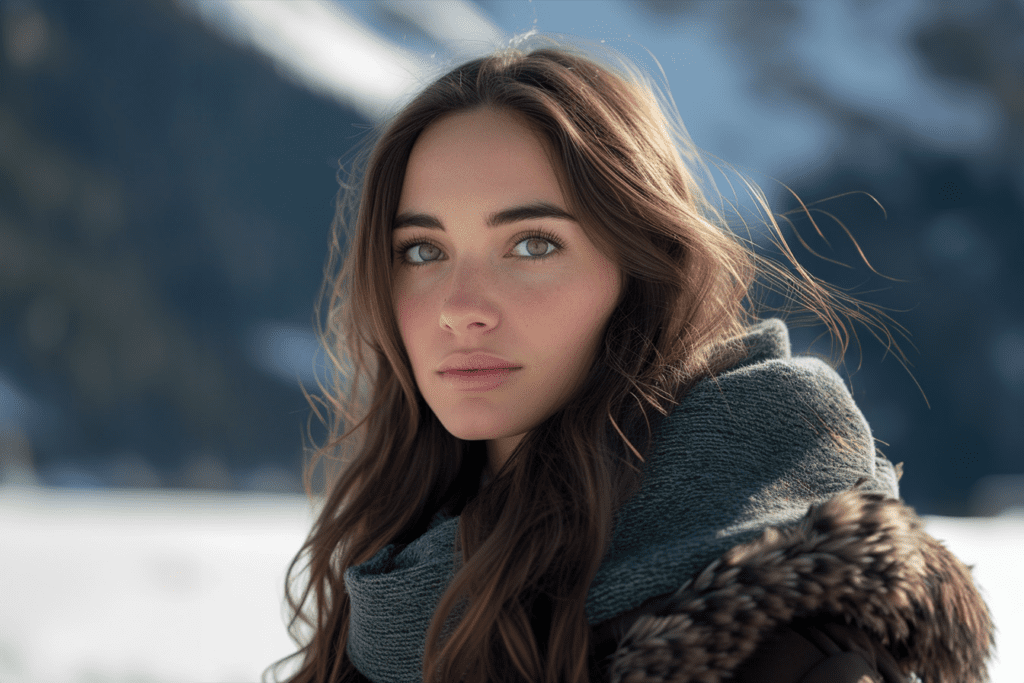
A good AI portrait is more than a pretty face, it’s a mood board you can stand inside. Creators use these portraits to test brand directions, character design, book covers, thumbnails, and mood concepts before production. When time is thin, AI can sketch ten looks in minutes. And sometimes, it uncovers a look you didn’t expect: a warmer tone, a looser curl, a quieter gaze that tells a better story.
The thread through all of these: intention. The tools can go loud: I often guide them back to simple light and clean composition.
Most portrait generators I use produce images from a prompt and, optionally, an image reference. The model “imagines” the subject through patterns it learned from many faces. I notice tendencies: a preference for symmetrical lighting, skin that’s a touch too polished, and eyes that catch light almost eagerly. The behavior changes per tool. Some lean cinematic with rich shadows: others brighten faces with gentle, ad-friendly contrast.

Many tools offer style transfer (borrowing the color, texture, or brushwork of a style) and face-aware edits (keeping identity consistent while shifting pose or mood). In Stable Diffusion workflows, features like IP-Adapter and ControlNet help keep likeness and composition aligned, useful when I want the same person across multiple shots. Adobe’s ecosystem and apps like Remini or FaceApp lean into enhancement and cleanup, smoothing, relighting, and subtle age or makeup variations. The visual effect is often tidy. I’m careful to keep pores and small asymmetries: that’s where life sits.
Traditional editing starts with a real photo and gently corrects it. AI portrait creation can start from nothing but a sentence. This unlocks scale and exploration, but it also invites over-perfection. With AI, I watch for plastic skin, uncanny symmetry, and teeth that sparkle in a way real enamel rarely does. Standard editing preserves the physics of the original light: AI sometimes invents light that looks pleasing but improbable. Knowing the difference helps me steer each image back toward believability.
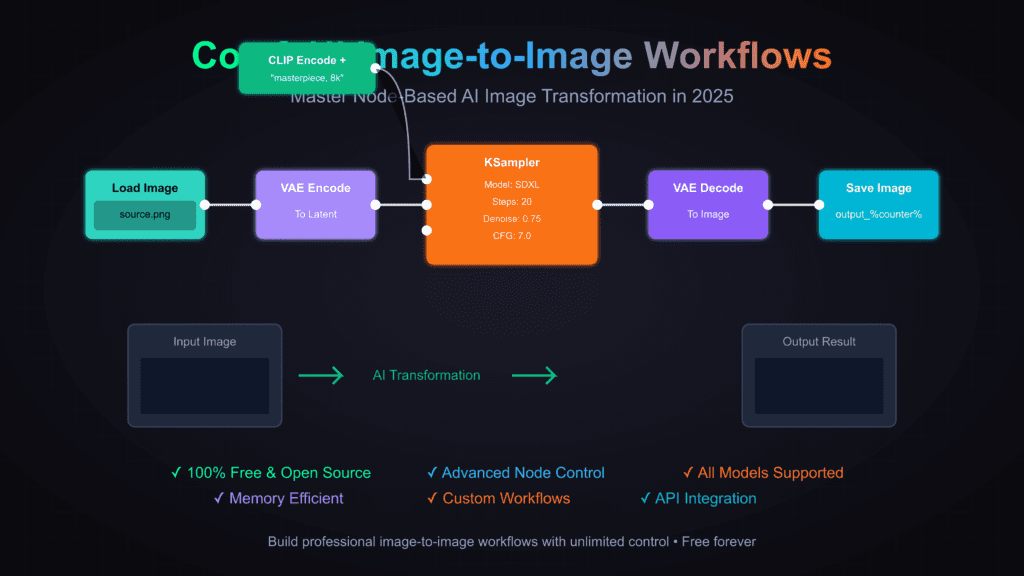
I start by asking: what’s the emotional goal? For moody, cinematic portraits with strong shadow play, I’ve had consistent results from Midjourney and SDXL pipelines with filmic prompts. For brand-safe, clean portraits, Adobe Firefly and DALL·E 3 tend to produce even lighting and friendly color. If I need identity consistency, SDXL with IP-Adapter or a lightweight LoRA works well. For restoration or polish on real photos, Remini, Topaz Photo AI, and Photoshop’s Generative tools feel steady.
Gently match the tool to the temperament of your project. Bold color? Choose a model known for vivid palettes. Natural skin? Pick a pipeline that preserves texture or add a face-detail pass later.
I collect three things: a style board, a lighting reference, and a face reference (if likeness matters). I prefer neutral, high-contrast lighting in the face reference: it helps the model find structure. I’ll note the catchlight shape (window, softbox, sun) and the shoulder line. Small things anchor identity.
Prompts stay clear and visual: “soft north-window light, 85mm portrait framing, shallow depth of field, natural skin texture, understated makeup, quiet expression.” I avoid adjectives that fight each other.
I generate in small batches, four to eight variations, then zoom in. I check eyes first: do highlights align with the supposed light source? I scan skin for over-smoothing and plastic sheen. Hairlines and ears reveal model stability: they often betray odd fusions.
Refinement steps I use often:
I export at a size that suits the medium: 2K square for avatars, 4K vertical for covers, higher only if print demands it. Before final, I do one last human pass in Lightroom or Photoshop: a touch of grain, subtle color harmony, and a check for halos at hair edges. The goal is quiet realism, letting the portrait breathe without calling attention to the edit.
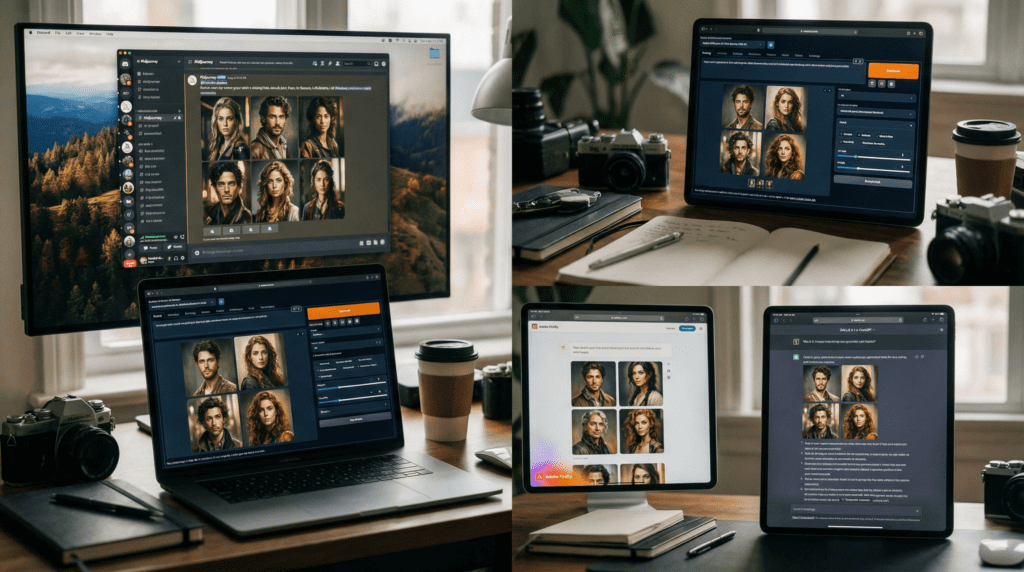
These options let you explore AI portrait creation without heavy cost, though usage caps and queue times may apply.
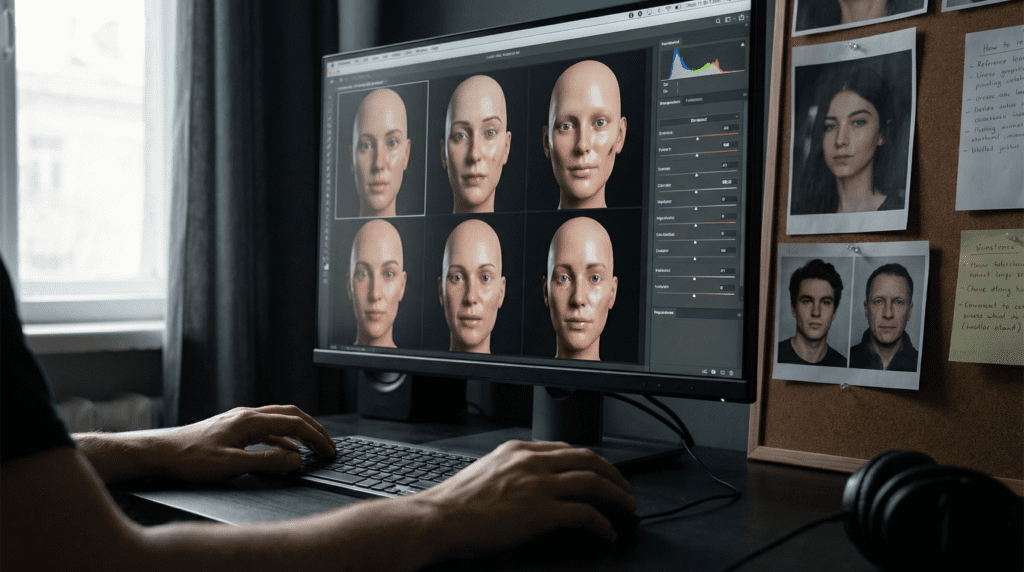
When a portrait feels flat, I often find the light is vague. I restate it: “single soft key light camera left, subtle rim light, shallow depth of field, soft background.” I also simplify styling, too many descriptors can confuse the model. If detail is missing, I regenerate at a higher guidance strength or upscale with a texture-friendly model, adding a whisper of grain to restore life.
Field note: over-upscaling makes skin look carved. I keep it gentle.
If a smile looks stretched or eyes feel empty, I reframe the emotion: “tiny smile, relaxed jaw, gaze slightly off-camera, gentle confidence.” I watch the catchlights, mismatched highlights can make eyes seem detached. For symmetry that’s too perfect, I add a small asymmetry cue: a stray hair, a softened brow, a slight head tilt.
If identity matters, I rely on a solid face reference and tools like IP-Adapter to anchor features. I avoid extreme poses on the first pass.
AI loves glossy skin and saturated color. I bring both down. In finishing, I reduce clarity on hotspots, add a soft vignette, and pull saturation toward natural hues. If the skin tone drifts, I nudge white balance warmer or cooler by just a few points. Wardrobe and background color harmony matters, complementary tones make faces feel grounded.
The quiet takeaway: AI portrait creation sings when you simplify the brief, respect light, and leave enough imperfection for the face to feel human.
Begin creating stunning AI portraits today and enhance your photo collection!