Let's Shape The Future Of Your Investments!
Natoque iaculis cursus augue urna commodo aptent morbi tortor porttitor quis ornare.
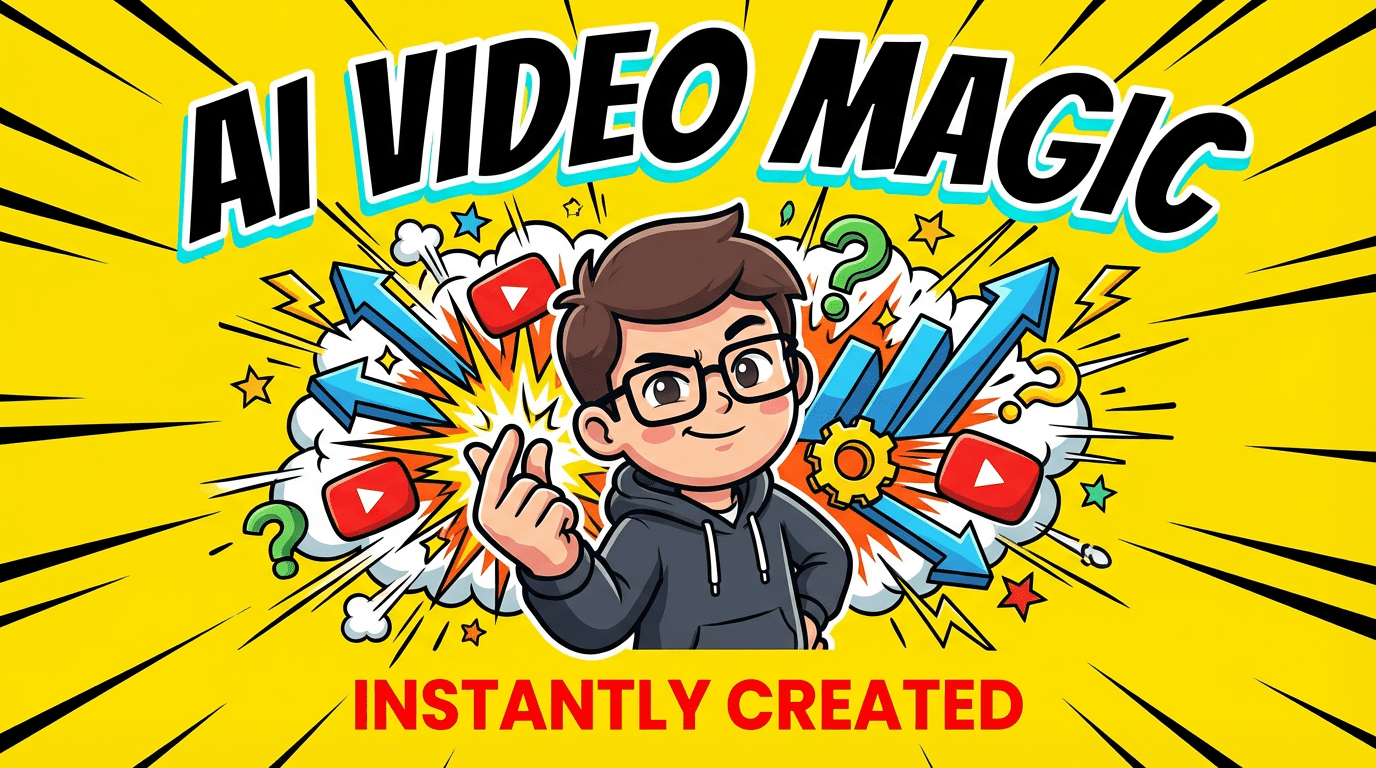
There’s a quiet kind of magic when an explainer video feels calm, clear, and emotionally steady. The voice glides, the visuals breathe, and the message lands without strain. When I talk about an AI explainer video, I’m not just thinking about saving time. I’m thinking about whether the light feels kind, whether the pacing feels human, and whether the viewer feels gently guided instead of rushed.
AI can absolutely help you get there, if you treat it as a visual and emotional partner, not just a shortcut. In this guide, I’ll walk you through how I think about AI explainer videos as a visual storyteller: how to use these tools to move faster without sacrificing warmth, clarity, or aesthetic coherence.
AI hasn’t just made explainer videos cheaper: it’s changed the rhythm of how they’re made. What used to take a small production team and weeks of back-and-forth can now be shaped in a single afternoon.
When I look at the landscape now, I see AI as the quickest way to move from idea to a visually complete explainer—script, voice, visuals, and edit—while still having room to refine the emotional tone.
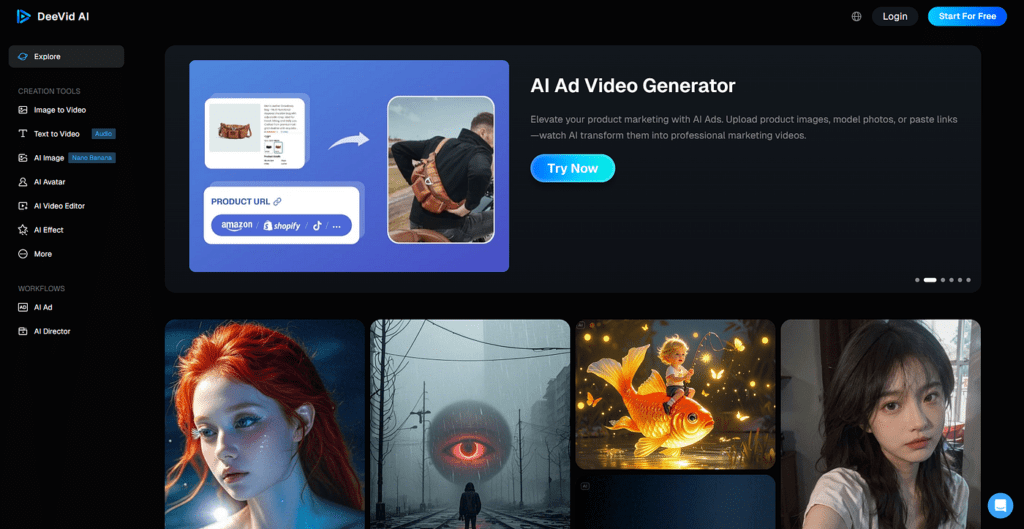
With a traditional explainer video, there are three places time quietly leaks away:
An AI explainer video compresses all three.
Script. Instead of staring at an empty page, I can feed AI a simple explanation of what I want to say and who it’s for. In a few seconds, I have a rough script. It’s rarely perfect, but it gives me structure. I then soften the language, add warmer phrases, and trim jargon until it feels like I’m talking directly to one person, not a crowd.
Voiceover. AI narration tools let me test different tones—calm, friendly, slightly energetic—within minutes. I listen for breathing space between sentences, for whether the voice rushes or allows a gentle pause. When I find a tone that feels emotionally steady, I lock it in. There’s no studio booking, no re-recording for small script changes.
Editing. Many AI explainer tools arrange scenes automatically: they match sections of your script to visuals, transitions, and captions. I still step in to adjust pacing, slowing a moment where I want the viewer to really breathe in an idea, but most of the structural work is done for me.
The result is not just speed. It’s that I’m spending less time fighting the technical side and more time shaping the emotional clarity of the video.
There are moments when an AI explainer video simply makes more sense than a fully traditional shoot:
But there’s another, softer reason: AI doesn’t get tired of revisions. If you’re patient, you can keep nudging the style, the voice, and the pacing until the explainer feels emotionally aligned with your brand, without burning out a human team.
Before opening any tool, I always pause for a moment. AI can move quickly, and that speed can turn into visual noise if you’re not anchored.
There are three things I like to clarify before I touch an AI explainer video tool.
A good explainer video doesn’t try to do everything. It explains one main thing with calm focus.
I ask myself:
For example: “Show beginners how to schedule posts in under two minutes.” That single sentence shapes the script, the visual rhythm, and keeps me from wandering.
The emotional temperature of an AI explainer video changes depending on who it’s for.
If I’m speaking to:
I like to write my core message in one warm, human sentence, like: “I want you to feel that this is completely doable.” Then I let that feeling guide how I use AI.
Different tools have different visual personalities.
I pay attention to:
Choosing a tool is less about features, more about whether its default look matches the emotional space I want to create.
Let me walk you through a simple, repeatable way to make an AI explainer video, from idea to export, without getting lost.
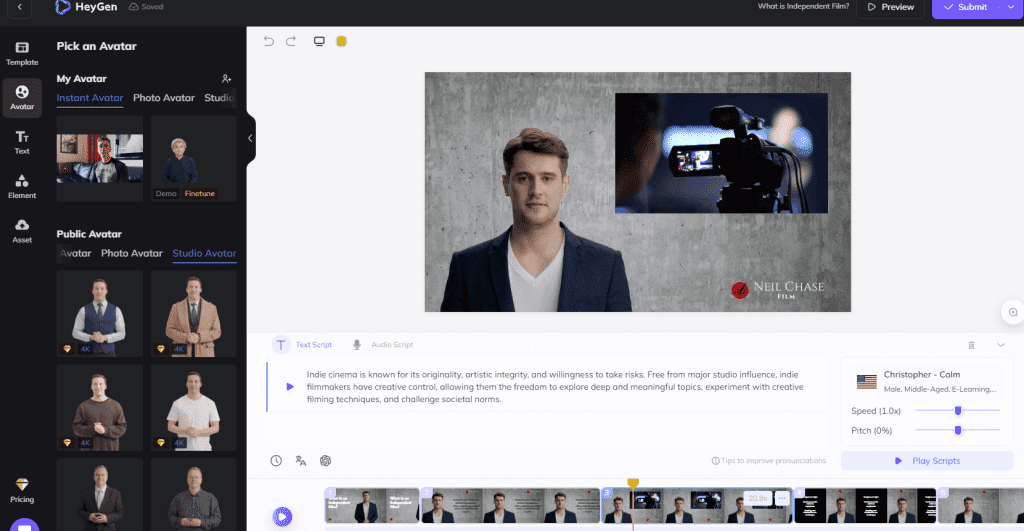
I usually aim for 100–150 words for a 45–60 second explainer. Shorter is almost always better.
I structure my script like this:
You can ask an AI writing assistant for a first draft, then soften the edges: remove stiff phrases, shorten sentences, and read it aloud. If your mouth trips over a sentence, your viewer’s ears will too.
Once I have the script, I test it with an AI voice.
I listen for:
I often slow the narration just a little. That extra fraction of a second between ideas gives the visuals room to breathe and helps the explainer feel more human.
This is where an AI explainer video can easily become too busy, or beautifully simple.
You can:
I look for:
If AI suggests something chaotic or overly intense, I pare it back: simpler shapes, calmer transitions, fewer competing elements.
Captions are not just practical: they add a visual rhythm.
I prefer:
Icons should support the story, not decorate it. A small, clear icon can gently underline a point—a calendar for “schedule,” a clock for “time saved.”
Branding can be subtle: a consistent accent color, a logo in a corner, a recognizable typeface. I avoid crowding the frame: I want the viewer to feel held, not pressured.
Before exporting, I always do one uninterrupted watch.
I ask myself:
Once it feels smooth, I export in vertical or horizontal format, depending on where it will live. For social platforms, vertical is often kinder to attention.
Then I add a short, clear title and description using the same language as the video itself, so the promise is aligned with what the viewer actually experiences.
I don’t believe in a single “best” tool. Each category has its own visual character, and I choose based on the kind of story I’m telling.
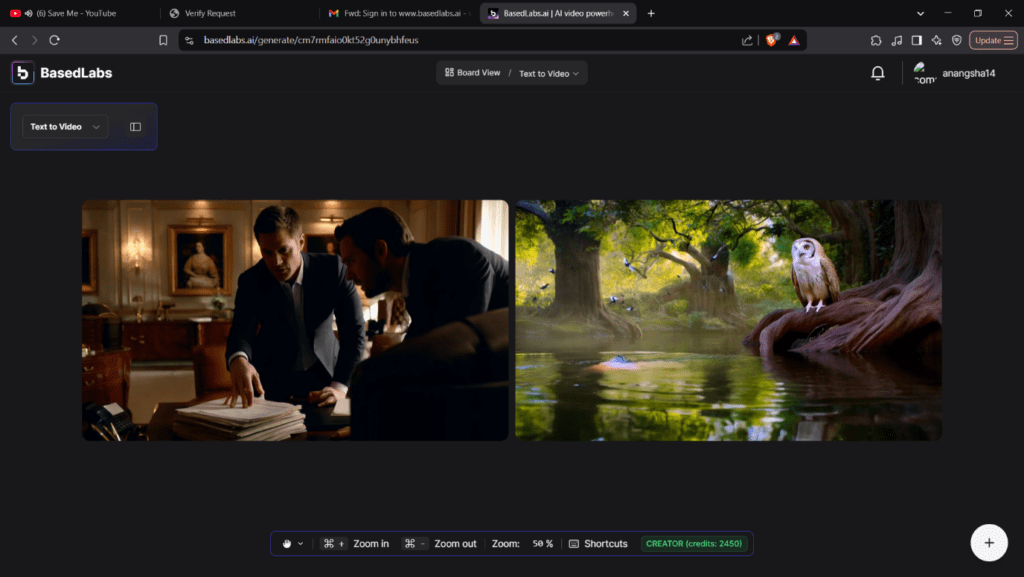
Text-to-video tools are ideal when you want to move from script to finished explainer with minimal friction.
Visually, they tend to offer:
I like them for quick product explainers, landing-page videos, or “what this does in 60 seconds” clips. The key is to stay in control of pacing: preview, then gently slow or trim sections that feel visually overloaded.
AI-driven animation tools are better when I want more character and movement: playful icons, smooth transitions, or subtle character animation.
They’re a strong fit for:
I watch carefully for motion stability here. If the movement feels jittery or overly bouncy, I simplify transitions. The best animated AI explainers feel like a soft, steady hand guiding you through an idea.
Sometimes I don’t need full video automation: I just need help organizing my thoughts.
AI script and storyboard assistants help me:
I treat these as quiet collaborators. They don’t decide the final look, but they keep the narrative clean and emotionally legible.
Once you’re comfortable with the basics, a few small choices can dramatically improve how your AI explainer video feels.
For social platforms, I find 30–60 seconds is a sweet spot. Long enough to gently explain, short enough to keep attention.
If I feel tempted to go longer, it’s usually a sign I’m trying to explain too many things at once. I’d rather create two calm, focused videos than one crowded one.
Simple doesn’t mean boring. It means breathable.
I prefer:
This makes the message easier to absorb, especially on small screens. Strong contrast also protects emotional clarity: the viewer isn’t straining to read or understand, so they can relax into the explanation.
The last few seconds are where the emotional arc lands.
I keep my call to action:
For example: “Try it today,” “Download the free guide,” or “Watch the full tutorial next.” I like to pair the CTA with a calm, steady visual—no hectic motion—so the viewer has a quiet moment to decide what to do next.
AI makes it easy to create, but it also makes it easy to overdo. There are a few patterns I see often.
When a script tries to say everything, the viewer remembers almost nothing.
If I hear myself stacking clause after clause—”and also,” “plus,” “as well as”—I stop and cut. Each explainer should feel like a single, steady breath, not a rushed monologue.
AI tools love to offer options. But mixing too many styles in one video—cartoon scenes, realistic footage, bold neon slides—creates emotional confusion.
I choose one general style and stay loyal to it:
Consistency makes the viewer feel safe inside the visual world you’ve created.
Sound is the quiet glue of an AI explainer video.
Even a simple, gentle track under the narration can:
I avoid music that’s too busy or dramatic. A soft, steady rhythm is usually enough. If the music pulls focus from the voice, I lower it until it feels like a background heartbeat instead of a competing performer.
For deeper insight into how effective explainer videos connect with audiences, Wistia’s video marketing research explores viewer behavior and retention patterns, while TechSmith’s guide to instructional video offers practical frameworks for educational content structure.
AI won’t replace the human eye or the human sense of timing. But it can hold the heavy lifting of production so you can pay attention to what truly matters: how the video feels.
If you approach your next AI explainer video with intention—clear message, calm visuals, consistent motion—you’ll find that these tools don’t strip away humanity. They simply give you more time and space to shape it.