Let's Shape The Future Of Your Investments!
Natoque iaculis cursus augue urna commodo aptent morbi tortor porttitor quis ornare.
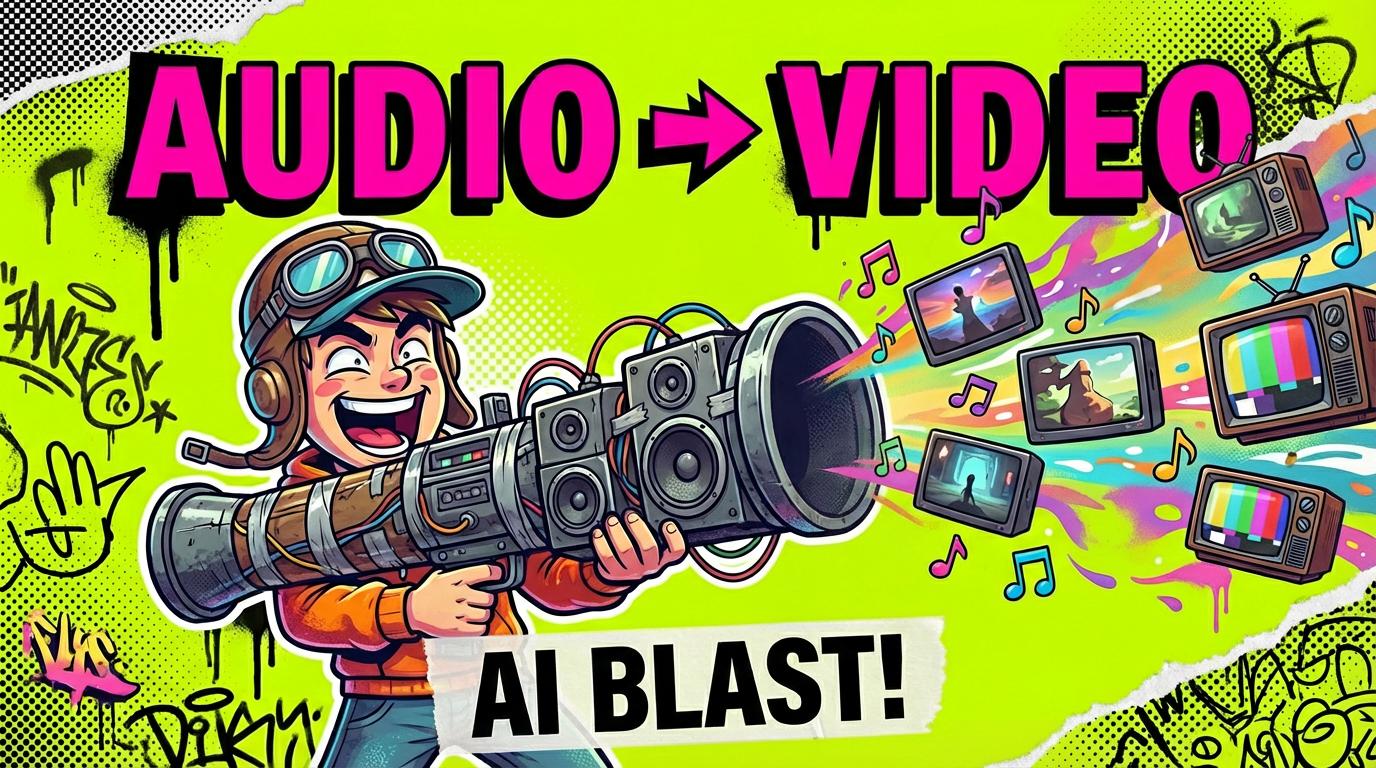
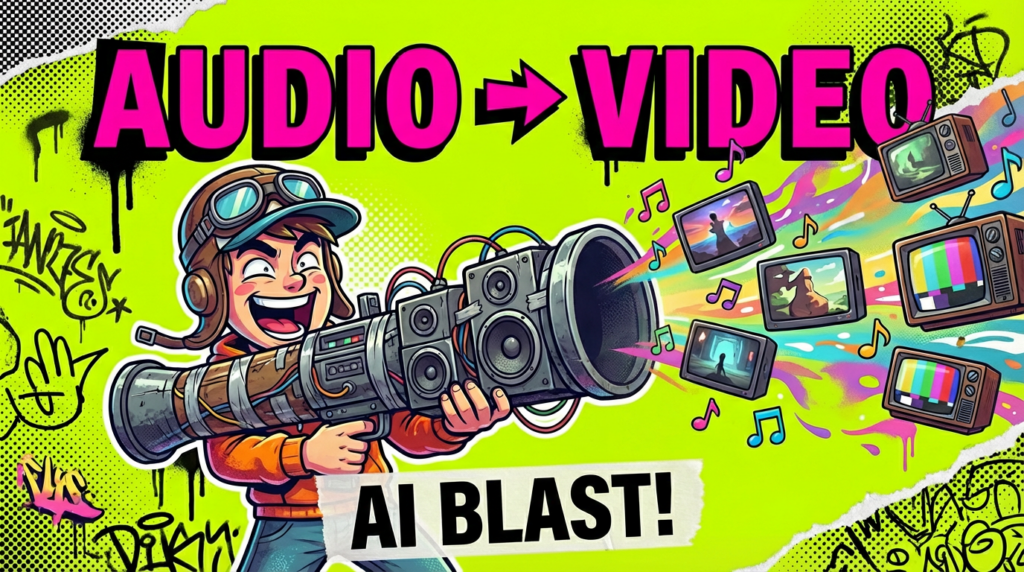
There’s a quiet kind of magic when a song finally finds its picture.
When I work with an AI music video generator from audio free, I’m not just asking for motion that matches the beat. I’m watching for rhythm in the light, the way colors breathe with the bass, the way a face holds emotion through a chorus without falling apart into glitches.
In this guide, I’ll walk you through the free AI tools that feel the most visually emotionally coherent right now, how they actually look and move, and how you can create better music videos from just an audio file, without drowning in technical language or ugly watermarks.
For many creators, the music comes first.
The problem is that traditional video production takes time, gear, and a whole mood board’s worth of planning. AI music video generators from audio gently lower that barrier. You bring a song, a feeling, maybe a rough idea of the visual tone, and the tool starts sketching moving images for you.
When it works well, it feels a bit like collaborating with a quiet, slightly unpredictable visual artist:
You still guide the vision, but you don’t have to animate every frame. Instead, you’re curating: nudging style, adjusting pacing, and choosing which moments feel emotionally honest.
Many creators are searching for an AI music video generator from audio free without watermark because watermarks instantly break the illusion. They pull you out of the story and remind viewers they’re watching something “generated,” not felt.
Free (or free-tier) tools are especially helpful if:
Policies change constantly, so I always suggest checking each tool’s latest terms. But in general, you can expect:
Used with intention, these free options are enough to build a coherent visual world around your sound.
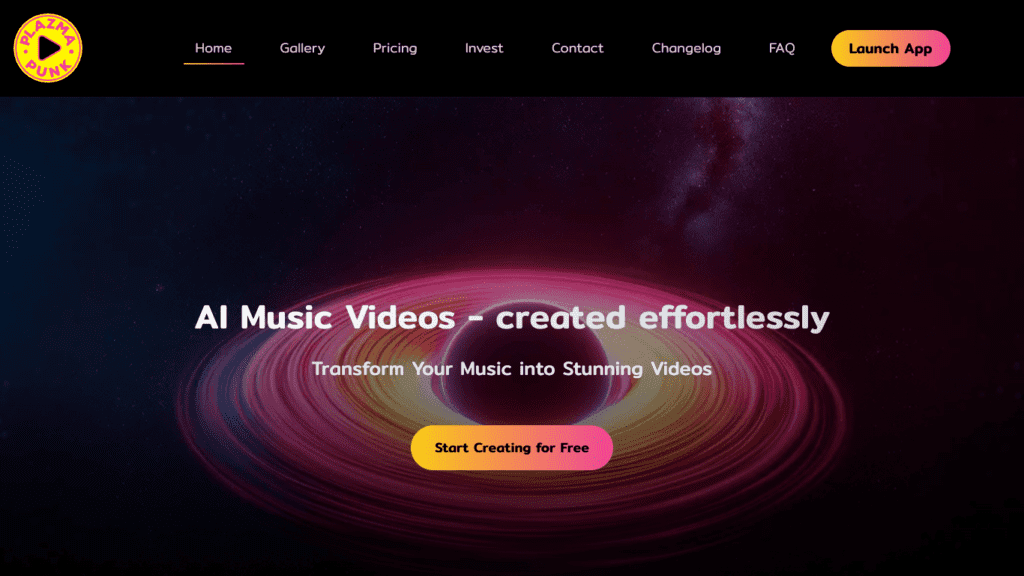
Plazmapunk is the one I keep returning to when I want the music to truly move the picture.
Its visuals are often abstract, pulsing, and dreamlike—more like living album art than traditional narrative scenes. When it works well, the light feels rhythm-aware, almost as if the bass lightly presses on the frame and the highlights answer.
What I notice most:
If you want an AI music video generator from audio free that feels alive to the beat, Plazmapunk is usually my first suggestion.
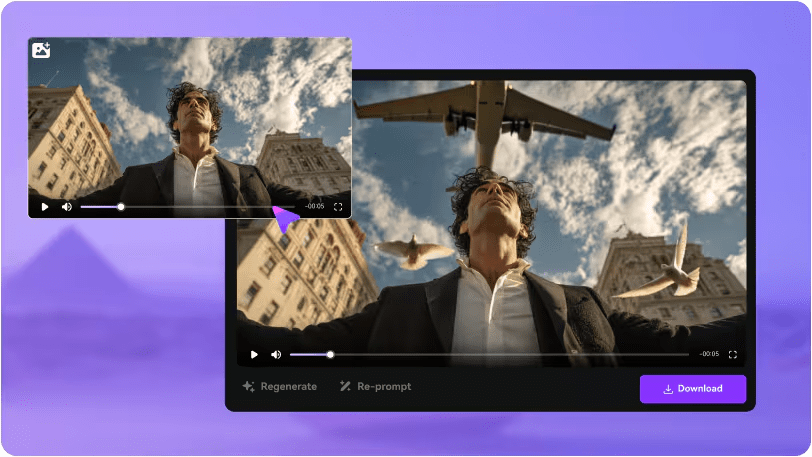
PixVerse is more of a general video creation tool that still works beautifully with music.
You can generate scenes or loops that you later sync to your audio in an editor. It’s not always as tightly reactive as Plazmapunk, but it offers:
For creators who want more figurative visuals, characters, landscapes, emotional vignettes, PixVerse feels like a patient sketchbook.
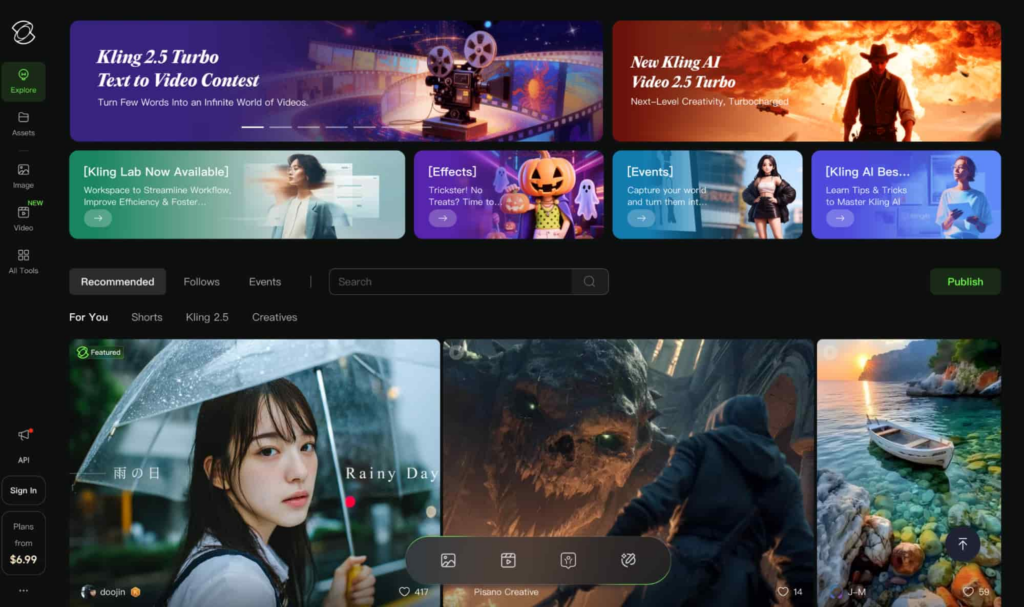
Kling tends to lean more cinematic. When you pair it with the right footage and audio, it can produce:
It’s especially interesting if you’re chasing short, polished sequences for trailers, hooks, or chorus moments. For full music videos you may still need to edit several clips together, but the individual shots often feel surprisingly composed.
Runway and Kaiber both offer ways to bring music and video together, often through free trials or limited free tiers.
These aren’t always “set it and forget it” tools. They reward creators who are willing to:
If you treat them as visual collaborators rather than one-click solutions, they can support some very personal music stories.
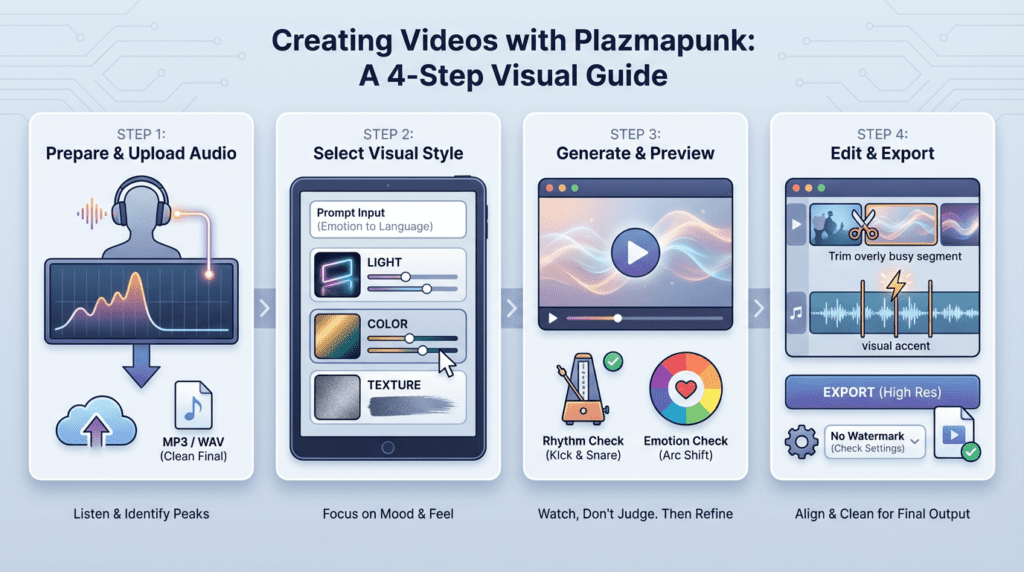
Before I touch visuals, I listen to the track at least twice.
Ask yourself:
Export a clean audio file (usually MP3 or WAV), then upload it to Plazmapunk. Make sure the version you use is final—tiny changes in timing later can break the connection between image and sound.
This is where your emotional intent becomes language.
When I prompt Plazmapunk, I focus on:
For example:
“Abstract cinematic waves of light in soft warm colors, gentle motion, subtle glow, film grain, emotionally calm yet evolving.”
The more your words point to mood rather than just objects, the better it tends to align with music.
When you generate the video, let it play once without judging. Just watch.
Then watch again and ask:
Sometimes the light feels gentle but slightly unsure—close, but not quite there. That’s normal. Small adjustments in your prompt (“slower motion,” “softer transitions,” “less chaotic movement”) can help.
If Plazmapunk and similar tools allow timeline or scene editing, I like to:
When exporting:
The goal is a video that feels emotionally timed, not just technically synced. For platform-specific technical requirements, YouTube’s video upload guidelines provide current standards for resolution, formats, and compression.
Good visuals start with clear, confident audio.
Think of the song as the heartbeat. The images simply learn to breathe around it.
I often see the same gentle missteps:
Slow down, simplify, and let the song choose one or two strong visual ideas.
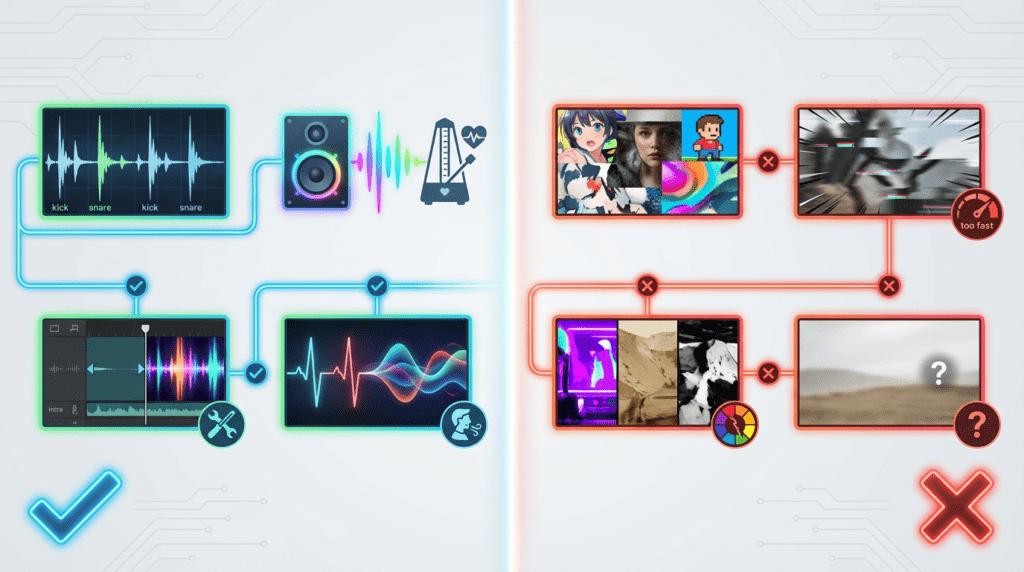
Using an AI music video generator from audio free is less about pressing a magic button and more about guiding a sensitive but unpredictable collaborator.
You:
When you’re patient, these tools offer small visual surprises that can make a song feel newly alive.
Do I need editing software as well?
Often yes, even something simple. Free editors like CapCut or DaVinci Resolve help you arrange clips, adjust timing, and add titles or lyrics. DaVinci Resolve’s official site offers a fully featured free version that professionals use for color grading and timeline editing.
Can I really get good results using only free tools?
You can absolutely create emotionally coherent, beautiful videos with free tiers and trials, as long as you accept some limits on length, resolution, or render count.
Which tool is best for beginners?
Plazmapunk is a gentle starting point if you just want your audio to drive visuals. PixVerse is friendlier if you’re more interested in scenes and characters.
How do I keep my visuals consistent across a whole album?
Decide on a shared palette, lighting style, and texture—for example, “warm golden light, soft film grain, slow camera motion”—and repeat that language in every prompt. Adobe’s guide on visual storytelling explores how consistent visual language strengthens narrative across multiple pieces.
What’s the most important thing to focus on?
Always the emotional truth of the song. If a scene looks impressive but doesn’t feel connected, let it go. The music should feel at home inside the image.