Let's Shape The Future Of Your Investments!
Natoque iaculis cursus augue urna commodo aptent morbi tortor porttitor quis ornare.

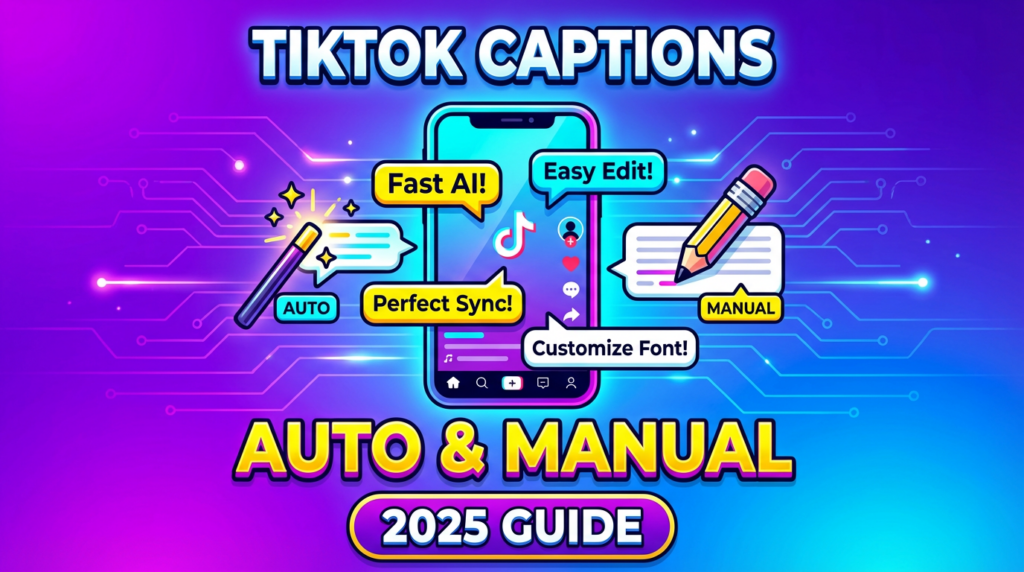
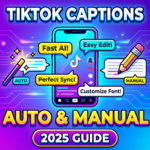
Captions aren’t optional anymore—they’re essential. If you’re creating TikTok content without them, you’re leaving views on the table.
Videos with captions generate 23% more likes on average than those without, and 42% of users prefer watching TikTok with captions on, even when audio is available. The data is clear: captioned videos perform better across every metric that matters.
This guide walks you through exactly how to add captions on TikTok using the platform’s built-in tools, plus professional alternatives when you need more control.
The algorithm rewards videos that keep people watching. Captions quietly do that work by making your content accessible to viewers in every context—commuting, at work, or scrolling in bed next to someone sleeping.
According to TikTok’s 2025 engagement benchmarks, videos with subtitles see 12% higher completion rates than those without, especially in non-native language regions. Higher completion rates signal quality to TikTok’s recommendation system, which directly impacts your reach.
Beyond the algorithm, captions shape how viewers experience your story. Videos using closed captions see 17% more watch time on average, especially among users aged 25+. When words appear on screen, people stay longer, rewatch sections, and engage more deeply with your content.
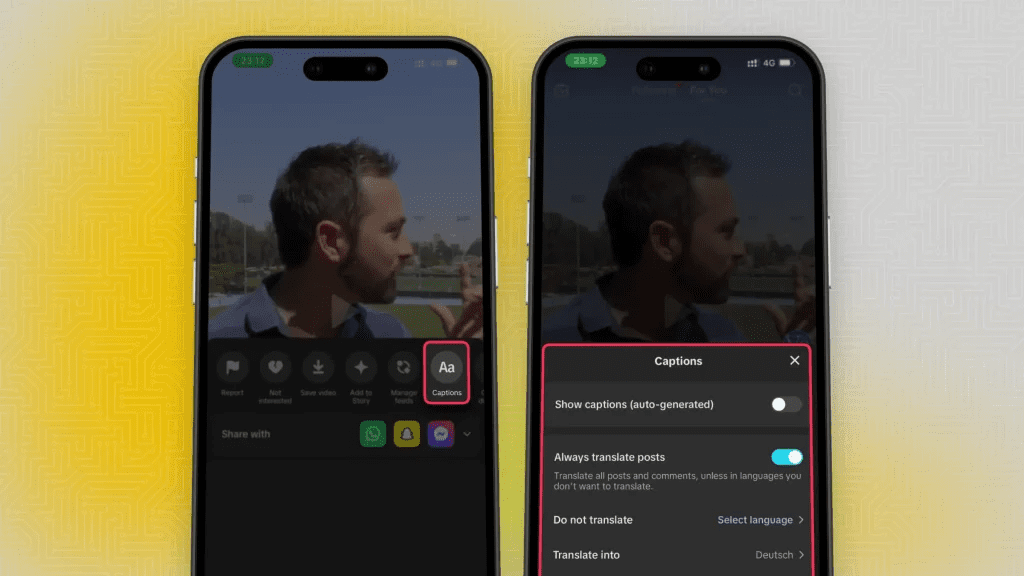
TikTok’s built-in caption tool uses speech recognition to transcribe your audio automatically. Here’s the exact process:
Once enabled, TikTok will process your audio and display text over your video. The system works best with clear speech and minimal background noise.
While TikTok’s auto-caption accuracy has improved significantly, no automated system is perfect. Always review the generated text for:
Tap any caption block to edit the text directly. You can:
For maximum readability, use high-contrast combinations. Bold text with a thin black outline works well on most backgrounds. White text with a subtle shadow creates a cleaner, more cinematic feel for calmer content.
When you’re satisfied, tap Save and proceed to post.
Auto captions work for straightforward dialogue, but manual captions give you precise timing and placement—essential for poetry, quick cuts, or stylized storytelling.
This method lets you sync each line to your voice’s rhythm, like subtitles in a carefully edited film.
For TikTok’s fast-scrolling feed, clarity beats creativity. According to recent platform research, posts with captions under 100 characters outperform longer text by 21% in engagement.
Keep text concise and use consistent styling across all videos. This builds brand recognition and creates a comfortable viewing experience that encourages people to watch more of your content.
While still in the editing interface:
This final soundless preview is critical—if your story makes sense in silence, your captions are working.
TikTok allows some post-publication editing, though availability varies by region and is typically limited to the first 7 days:
This feature works for minor fixes like typos or timing adjustments. For major corrections—wrong language, missing lines, or chaotic timing—it’s often better to delete and repost with corrected captions.
When TikTok’s built-in tools fall short, external apps offer enhanced accuracy and styling options.

Developed by TikTok’s parent company, CapCut integrates seamlessly with TikTok’s workflow. It provides:
The workflow: Import your video, generate auto captions, fine-tune any errors, style them to match your brand, and export for direct upload to TikTok.
Veed.io is a web-based editor ideal for creators who prefer working on larger screens. Its free tier offers solid caption tools with particularly strong performance on varied accents and speech patterns.
For creators producing longer-form or professional content, Descript delivers industry-leading transcription accuracy and advanced editing capabilities, though it requires a paid subscription.
Captions serve two equally important purposes: they make your content accessible to deaf and hard-of-hearing viewers, and they signal quality to TikTok’s recommendation system.
Adding captions increases completion rates by 28%, benefiting users who watch without sound and improving accessibility. This isn’t just about reaching more people—it’s about creating content that respects all viewers.
When you consistently use captions, you’re optimizing for both human experience and algorithmic performance. That combination drives sustainable growth.

TikTok’s caption feature works best when:
For videos with heavy background music, consider recording voice separately or lowering music volume during speech sections to improve transcription accuracy.
The most successful TikTok creators treat captions as a core element of their visual storytelling, not an afterthought. When you plan your content, consider:
This intentional approach transforms captions from a technical requirement into a creative advantage—another way to hold attention in a crowded feed.
Key Takeaway: Captions aren’t just an accessibility feature or an algorithmic signal—they’re a fundamental part of how modern audiences consume short-form video. By mastering TikTok’s caption tools and incorporating them consistently into your workflow, you create content that performs better, reaches more people, and respects every viewer’s experience.
For more guidance on optimizing your TikTok strategy, see TikTok’s official creator resources and accessibility guidelines.