Let's Shape The Future Of Your Investments!
Natoque iaculis cursus augue urna commodo aptent morbi tortor porttitor quis ornare.


When I turn a song into an AI video, I’m not just chasing cool visuals. I’m trying to give the music a body, light, color, motion, that feels emotionally in tune with the sound.
If you’re a creator who wants to make an AI video from a song for free, the good news is: 2025 is a generous year. There are several tools that actually feel usable, not just as tech demos, but as real visual partners for your music.
In this guide, I’ll walk you through the 5 best free AI music-to-video tools I’ve tested, show you how to make a music video in under 10 minutes, and share my favorite prompts that sync beautifully with almost any track.
When I test these tools, I listen first. I let the song fill the room, then I notice how each tool responds, does the motion follow the beat, do the colors echo the mood, does the image feel emotionally connected or slightly out of breath?
Here’s how each one feels in real use.
Kaiber is still the most emotionally reliable choice for turning a song into an AI video for free.
The atmosphere it creates tends to be coherent: the backgrounds don’t breathe in strange ways, identity is mostly stable, and the motion usually understands the rhythm without becoming chaotic. The light often feels soft and intentional, especially for slower or mid-tempo songs.
Where Kaiber shines:
Where it struggles:
If you want your first music AI video to actually feel like a short film, I’d start here.
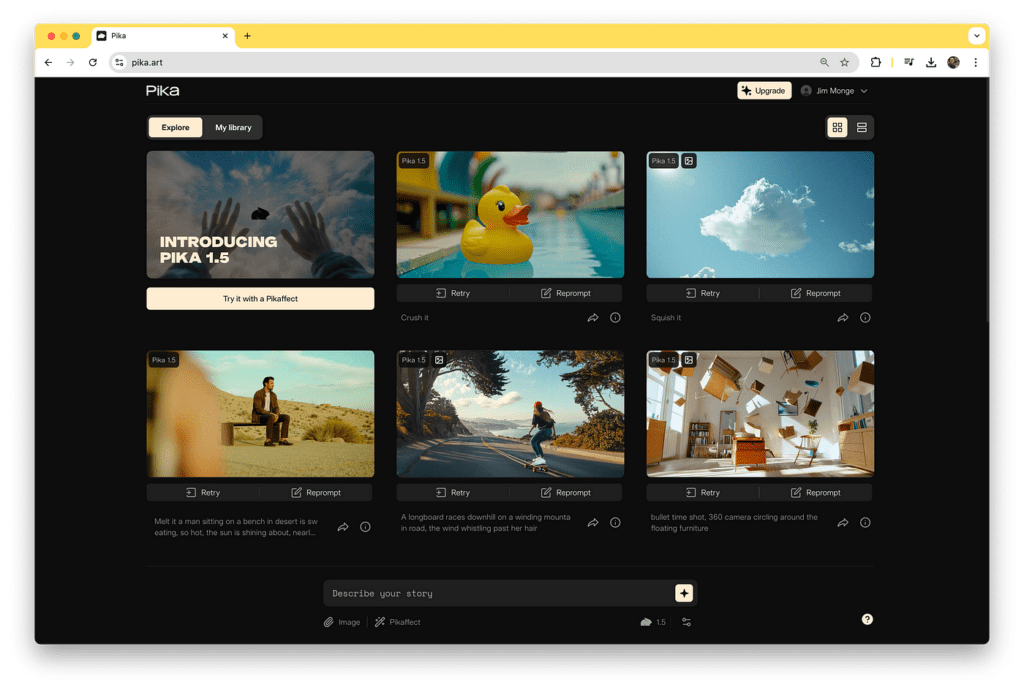
Output Pika.art feels like an impatient but talented editor. It moves quickly, render speed is one of the best things about it, and it’s very good at giving you sharp, bold, expressive visuals at 1080p.
The motion has energy. On beats, transitions often feel satisfying, though sometimes a little too eager, especially on dense EDM or rap tracks. Faces can be beautiful, but in complex shots I sometimes notice small hesitations, eyes that don’t fully settle, hands that blur for a frame or two.
Beautiful for:
Less ideal for:
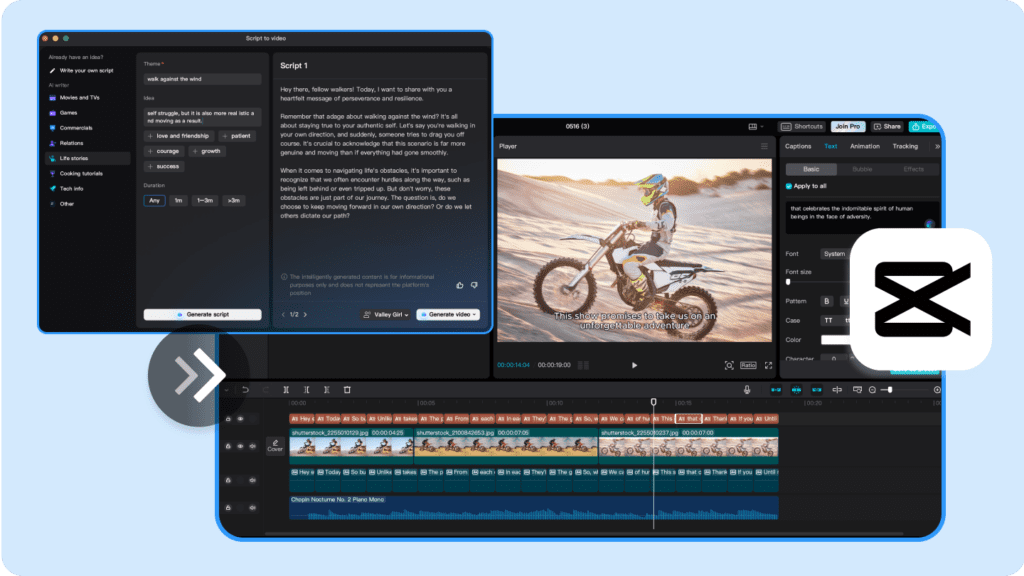
CapCut’s web version, paired with its beat-detection and AI tools, feels like a friendly editing room that understands trends. It’s not a pure “type a prompt, get an AI video” tool. Instead, you combine:
The strength here is control. I can decide where the cuts land, how the camera moves, and keep the emotional pacing close to the song. There’s no watermark on exports if you stay within the free allowances, which makes it perfect for YouTube Shorts and TikTok.
Visually, it can be as subtle or as loud as you are. The mood depends more on your choices than on the model’s instincts.
Luma’s Dream Machine has a particular visual personality. The light often feels dreamy and slightly surreal, like early morning fog or a dimly lit music video shot on an empty street.
When I use it with music, I notice:
On the free tier, you’re limited in volume, but the moments you do get often have a delicate, almost poetic quality, especially for indie, ambient, or experimental tracks.

Runway’s free offering in 2025 isn’t limitless, but it’s still worth caring about. Gen-3 has a very “produced” look. Contrast is a bit stronger, colors are confident, and faces can feel surprisingly human in close-ups. With music, the edits sometimes feel more like a montage than a strictly beat-synced cut, but this can work beautifully for narrative or conceptual songs.
Visually, it suits:
For raw, beat-heavy syncing, I’d lean to Kaiber or Pika first, then Runway when you want a more editorial feel.
Here’s a soft, at-a-glance view of how these tools feel for free music videos:
| Tool | Best For | Visual Mood | Standout Free Perk |
| Kaiber | Overall music videos | Cinematic, emotionally steady | Usable free credits + music mode |
| Pika.art 1.5 | Fast, punchy edits | Bold, sharp, expressive | Quick 1080p renders |
| CapCut Web + AI | TikTok/Shorts, no watermark | Depends on your clips & style | 100% free export, no watermark |
| Luma Dream Machine | Dreamy, atmospheric visuals | Soft, surreal, poetic | Free tier with strong aesthetics |
| Runway Gen-3 Free | Polished, branded-style visuals | High-contrast, editorial | Limited but high-quality outputs |
I rotate between these depending on the song’s emotional temperature and where I’m posting.
You don’t need to understand technical language to make an AI video from a song for free. You just need a short track, a calm plan, and one of the tools above.
Shorter is kinder, to the tools and to your viewers.
I aim for:
Trim to the most emotionally honest section: the chorus, a key verse, or a build-up into a drop. You want a moment where the song breathes, swells, or hits.
I choose based on the song’s inner rhythm:
Ask yourself: Is this song calm, intense, dreamy, or bold? Let that answer guide the tool.
Most tools let you upload your audio directly. Once it’s in, the prompt becomes your quiet direction to the model.
Keep the language simple, visual, and emotional. Mention:
You can start with these:
Cinematic Emotional Ballad
“Cinematic music video of a lone singer walking through a quiet city at night in soft warm streetlight, gentle camera movement, subtle emotion on the face, realistic textures, shallow depth of field, moody but hopeful atmosphere.”
High-Energy EDM / Rap
“Fast-paced urban music video in neon city lights, dynamic camera moves, quick cuts on the beat, expressive performers dancing, bold colors, crisp contrast, steady motion, stylish modern streetwear, confident mood.”
Lo-fi / Chill Vibes
“Cozy lo-fi music video of a person working at a desk by a rainy window, warm lamp light, soft grain, gentle slow camera pans, calm atmosphere, muted colors, smooth looping motion, peaceful night-time mood.”
You can paste these directly into almost any tool and adjust tiny details, city, room, clothing, or mood, so it fits your song.
Some tools try to sense the rhythm automatically. Others, like CapCut, let you see the waveform and place cuts yourself.
For beat syncing, I look for:
If your first render feels slightly off, maybe the camera rushes right before the chorus, shorten the clip or move your start point so the song’s big moment arrives a bit earlier in the timeline.
Always look for:
If a tool forces a watermark on the free plan, I usually:
It’s slower, but the final video feels intentional and yours.
When I want the visuals to sit tightly with the music, I gently remind the tool about motion in the prompt. That small instruction often helps the camera respect the beat.
“Cinematic music video, one main character in soft natural light, slow steady tracking shots and gentle close-ups, subtle facial expressions, background slightly out of focus, warm color palette, beat-synced camera moves, smooth transitions, emotional but calm atmosphere.”
“High-energy music video in a neon city at night, quick cuts synced to the beat, dynamic handheld-style camera, dancers and performers in stylish streetwear, bold saturated colors, clear silhouettes, light flickers on the drop, motion synced with rhythm, confident powerful mood.”
“Lo-fi music video of a cozy bedroom at night, person relaxing with headphones, soft lamp light, subtle film grain, slow pans and zooms synced gently to the beat, muted pastel colors, calm loopable motion, peaceful and intimate atmosphere.”
You can paste these into Kaiber, Pika, Runway, or even as guidance for how you arrange clips in CapCut.
Long tracks drain free credits and usually feel visually tired halfway through. I keep it under 90 seconds and save longer cuts for manual editing.
If you don’t gently ask for beat-synced motion, many tools default to vague drifting. A single phrase like “camera moves synced to the beat” often brings surprising clarity.
720p softens details and makes textures feel a little plastic. If 1080p is available in the free plan, I always choose it. Faces, light, and small background details all feel more alive.
I avoid hacks and instead work around watermarks:
It’s slower, but your final video feels free and honest.